
HP Paper Jam? Clear Safely Without Damage
✨ Answer (Direct & Actionable)
To fix a paper jam in an HP printer, turn off the printer, unplug it, and carefully remove any jammed paper from the input tray, rear access door, or cartridge area. Always pull paper in the direction of the paper path to avoid tearing. Check rollers for debris, reload paper properly, and restart the printer. For recurring jams, clean the rollers and ensure you’re using the correct paper type and size. This process resolves most HP paper jam errors safely and effectively.
The Hidden Truth About Paper Jams (It’s Not Just “Stuck Paper”)
A paper jam might look simple—paper stuck inside, remove it, done. But if you’ve ever cleared a jam only to see it happen again, you already know: the real issue often goes deeper.
In many cases, a jam is just a symptom. The actual cause could be:
- Worn-out rollers
- Improper paper loading
- Dust buildup
- Sensor misreads
Understanding this difference is what separates a temporary fix from a permanent solution.
Where Paper Jams Usually Occur in HP Printers
Knowing where to look saves time and prevents damage.
1. Input Tray (Paper Feed Area)

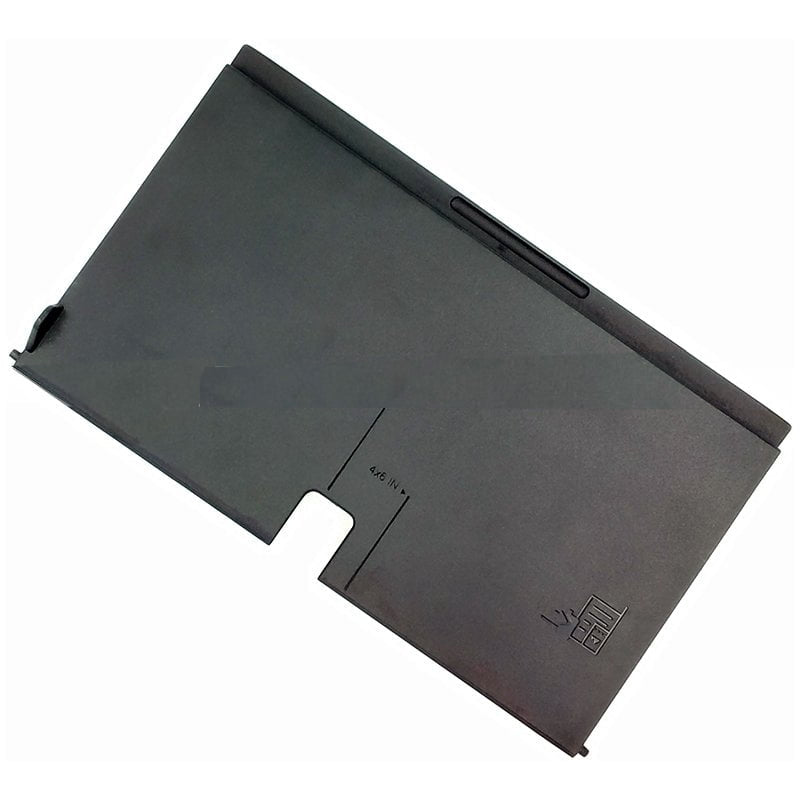

- Overloaded or misaligned paper
- Incorrect paper size
2. Rear Access Door / Duplex Unit



- Common for hidden jams
- Easier access point for removal
3. Inside Printer (Cartridge Area)


- Torn paper pieces often remain here
- Can block carriage movement
Step-by-Step: How to Fix a Paper Jam in HP Printer (Safely)
Step 1: Power Down Completely
- Turn off the printer
- Unplug from power source
👉 This prevents electrical damage and resets sensors.
Step 2: Remove Paper from Input Tray
- Take out all paper
- Check for crumpled or damaged sheets
👉 Even one folded edge can cause repeated jams.
Step 3: Open Rear Access Door
- Locate rear panel
- Gently remove jammed paper
Important:
Always pull paper in the same direction it moves naturally.
Step 4: Check Inside the Printer
- Open cartridge access door
- Slide carriage gently (if movable)
- Remove any visible paper fragments
👉 Tiny scraps are often the real culprit.
Step 5: Inspect Rollers
Rollers feed paper through the printer.
If dirty or worn:
- Paper slips or misfeeds
- Jams occur repeatedly
Quick clean:
- Use lint-free cloth
- Slightly damp (not wet)
- Rotate rollers manually
Step 6: Reload Paper Correctly
- Align paper edges
- Don’t overfill tray
- Adjust paper guides snugly
Step 7: Restart and Test Print
Plug in and turn on printer.
Run a test print:
- If smooth → issue resolved
- If jam repeats → move to advanced fixes
Real-World Scenario: Why Jams Keep Coming Back
You clear a jam. It prints once. Then—jam again.
This loop usually happens because:
- A tiny torn piece is still inside
- Rollers are dirty or worn
- Paper quality is poor
👉 Fixing the root cause breaks the cycle.
Common Causes of HP Printer Paper Jams (Explained Simply)
1. Overloaded Paper Tray
Too much paper creates uneven feeding pressure.
2. Wrong Paper Type
Using thick, glossy, or curled paper in a standard tray can disrupt feeding.
3. Dirty Rollers
Dust reduces grip → paper slips → jam.
4. Humidity & Paper Quality
Moist paper sticks together and feeds unevenly.
5. Misaligned Paper Guides
Loose guides allow paper to tilt during feeding.
Advanced Fixes (If Basic Steps Don’t Work)
✔ Reset the Printer
- Turn off
- Unplug for 5–10 minutes
- Restart
Clears internal error states.
✔ Update Printer Firmware
Firmware updates improve:
- Paper handling
- Sensor accuracy
✔ Replace Worn Rollers
If printer is older:
👉 Rollers may need replacement.
✔ Check Paper Path Sensors
Sensors detect paper movement.
If blocked or dirty:
- False jam errors appear
Pro Tips to Prevent Future Paper Jams
✔ Use High-Quality Paper
Cheap paper = inconsistent thickness = jams
✔ Fan Paper Before Loading
Prevents sheets from sticking together
✔ Store Paper Properly
Keep in dry, flat environment
✔ Clean Printer Monthly
Dust buildup is a silent problem
✔ Avoid Mixing Paper Types
Different thicknesses confuse rollers
What NOT to Do (Critical Mistakes to Avoid)
- ❌ Pull paper forcefully
- ❌ Use sharp tools inside printer
- ❌ Ignore small paper fragments
- ❌ Continue printing after partial jam removal
These can cause permanent damage.
Soft Fix vs Permanent Fix
| Fix Type | Result | Longevity |
|---|---|---|
| Removing jammed paper | Immediate relief | Short-term |
| Cleaning rollers | Improved feeding | Medium-term |
| Using correct paper | Prevents jams | Long-term |
| Replacing rollers | Permanent solution | Best |
Expert Insight: The “Invisible Jam” Problem
Sometimes the printer shows a jam error—but there’s no visible paper.
This usually means:
- Sensor blockage
- Tiny debris stuck inside
- Internal misfeed
👉 In such cases, a deep clean or reset is required.
Final Thoughts: Fix Smart, Not Just Fast
Fixing a paper jam in an HP printer isn’t just about removing paper—it’s about restoring the entire paper path system.
If you:
- Clear jams properly
- Maintain rollers
- Use correct paper
…you’ll rarely face this issue again.
A few extra minutes of careful handling today can save hours of frustration later.
FAQs (Bing-Optimized)
1. Why does my HP printer keep saying paper jam but there is none?
This is usually due to sensor blockage, dust, or tiny paper fragments inside the printer.
2. Can I use any paper in my HP printer?
No. Always use recommended paper type and size to avoid feeding issues.
3. How often should I clean printer rollers?
Once every 1–2 months for regular use.
4. Is it safe to pull jammed paper out forcefully?
No. Always pull gently in the direction of the paper path.
5. Do paper jams damage printers?
Frequent or forceful jams can damage rollers and internal components.
6. When should I replace printer rollers?
If jams persist even after cleaning, especially in older printers.
If you want, I can also create a model-specific HP paper jam fix guide (DeskJet, LaserJet, OfficeJet) tailored to your exact printer.
;}.cls-2{fill:%230868f7;}.cls-3{fill:url(%23未命名的渐变_44);}.cls-4{fill:%23333;}%3c/style%3e%3clinearGradient%20id='未命名的渐变_8'%20x1='33.73'%20y1='100.61'%20x2='-0.03'%20y2='-1.06'%20gradientUnits='userSpaceOnUse'%3e%3cstop%20offset='0'%20stop-color='%237ae9fb'/%3e%3cstop%20offset='0.67'%20stop-color='%232b90f8'/%3e%3cstop%20offset='1'%20stop-color='%230868f7'/%3e%3c/linearGradient%3e%3clinearGradient%20id='未命名的渐变_44'%20x1='27.86'%20y1='18.67'%20x2='68.36'%20y2='22.22'%20gradientUnits='userSpaceOnUse'%3e%3cstop%20offset='0'%20stop-color='%235ac7f2'/%3e%3cstop%20offset='1'%20stop-color='%230868f7'/%3e%3c/linearGradient%3e%3c/defs%3e%3cpath%20class='cls-1'%20d='M29,28.74V81.91l-9.51-3.68v0L8.52,74A7.17,7.17,0,0,1,4,67.32V24.54A3.76,3.76,0,0,1,9.08,21Z'/%3e%3cpath%20class='cls-2'%20d='M68.09,78.07a13.15,13.15,0,0,1-17.9,12.06L29,81.91h0V28.74L50.19,37A13.17,13.17,0,0,0,68.08,25.3h0Z'/%3e%3cpath%20class='cls-3'%20d='M68.08,25.3a13.19,13.19,0,0,1-6.73,10.87A13.09,13.09,0,0,1,50.19,37L29,28.74V6A3.76,3.76,0,0,1,34.1,2.52l25.59,9.91A13.22,13.22,0,0,1,68.08,25.3Z'/%3e%3cpath%20class='cls-4'%20d='M129.06,81.76a4.33,4.33,0,0,1-3.19-1.31,4.4,4.4,0,0,1-1.31-3.24V56.86H97.65V77.21a4.36,4.36,0,0,1-1.35,3.2A4.68,4.68,0,0,1,93,81.76a4.32,4.32,0,0,1-3.19-1.31,4.37,4.37,0,0,1-1.32-3.24V27.27A4.58,4.58,0,0,1,89.83,24a4.59,4.59,0,0,1,7.82,3.27V48.15h26.91V27.27A4.58,4.58,0,0,1,125.91,24a4.59,4.59,0,0,1,7.82,3.27V77.21a4.37,4.37,0,0,1-1.36,3.2A4.65,4.65,0,0,1,129.06,81.76Z'/%3e%3cpath%20class='cls-4'%20d='M163.77,81.66c-6.57,0-11.76-1.92-15.44-5.7s-5.54-9.07-5.54-15.74a26.76,26.76,0,0,1,2.09-10.43,17.72,17.72,0,0,1,6.67-8.06,19.15,19.15,0,0,1,10.68-2.95,19,19,0,0,1,10.46,2.8,18.7,18.7,0,0,1,6.55,7.36,22.53,22.53,0,0,1,2.36,10.28A4.51,4.51,0,0,1,177,63.77H152.23a10.8,10.8,0,0,0,3.49,6.65c2,1.68,4.88,2.52,8.66,2.52a22.25,22.25,0,0,0,7.54-1.21c.74-.3,1.55-.67,2.37-1.07a3.75,3.75,0,0,1,1.84-.4,4.09,4.09,0,0,1,3,1.15,4,4,0,0,1,1.12,3,4.38,4.38,0,0,1-2.58,3.82,32.34,32.34,0,0,1-6.36,2.61A28.67,28.67,0,0,1,163.77,81.66ZM172.4,55.9a9.72,9.72,0,0,0-1.63-4.56A9.9,9.9,0,0,0,167,48a10.38,10.38,0,0,0-4.64-1.14,12,12,0,0,0-4.77,1.06,9.54,9.54,0,0,0-4.89,5.66,11.78,11.78,0,0,0-.51,2.3Z'/%3e%3cpath%20class='cls-4'%20d='M193,81.64a4.49,4.49,0,0,1-4.51-4.55V27.28A4.58,4.58,0,0,1,189.84,24a4.48,4.48,0,0,1,3.28-1.36A4.36,4.36,0,0,1,196.35,24a4.46,4.46,0,0,1,1.31,3.31V77.09a4.34,4.34,0,0,1-1.35,3.2A4.67,4.67,0,0,1,193,81.64Z'/%3e%3cpath%20class='cls-4'%20d='M263.79,81.71a5.7,5.7,0,0,1-4.2-1.74,5.76,5.76,0,0,1-1.73-4.19V27.37a4.58,4.58,0,0,1,1.35-3.27A4.59,4.59,0,0,1,267,27.37V72.53h24a4.58,4.58,0,0,1,3.27,7.82A4.66,4.66,0,0,1,291,81.71Z'/%3e%3cpath%20class='cls-4'%20d='M424.48,81.74a4.71,4.71,0,0,1-2.71-.88,5.43,5.43,0,0,1-1-1l-.07-.09-12.41-17-5.41,5v9.44a4.31,4.31,0,0,1-1.36,3.19,4.66,4.66,0,0,1-3.3,1.36A4.29,4.29,0,0,1,395,80.42a4.36,4.36,0,0,1-1.32-3.23V27.37A4.58,4.58,0,0,1,395,24.1a4.52,4.52,0,0,1,6.58.12,4.54,4.54,0,0,1,1.24,3.15V56.31l17.72-16.38.05,0a4.8,4.8,0,0,1,2.94-1.11,4.4,4.4,0,0,1,3.27,1.2,4.57,4.57,0,0,1,1.2,3.27,4.44,4.44,0,0,1-.77,2.33,7.45,7.45,0,0,1-1.43,1.65l-11,9.64,13.34,17.68a5,5,0,0,1,1,2.71,4.12,4.12,0,0,1-1.36,3.24A4.64,4.64,0,0,1,424.48,81.74Z'/%3e%3cpath%20class='cls-4'%20d='M317.93,81.76a21.5,21.5,0,1,1,21.17-21.5A21.37,21.37,0,0,1,317.93,81.76Zm0-34.1a12.61,12.61,0,1,0,12.42,12.6A12.52,12.52,0,0,0,317.93,47.66Z'/%3e%3cpath%20class='cls-4'%20d='M212.18,101.22a4.12,4.12,0,0,1-3.05-1.26,4.17,4.17,0,0,1-1.26-3.1V43.34a4.37,4.37,0,0,1,1.3-3.14,4.26,4.26,0,0,1,3.13-1.3,4.19,4.19,0,0,1,3.1,1.26,4.32,4.32,0,0,1,1.26,3.16,20.77,20.77,0,0,1,13-4.54,21.51,21.51,0,0,1,0,43,20.51,20.51,0,0,1-13-4.57V96.86a4.15,4.15,0,0,1-1.3,3.06A4.5,4.5,0,0,1,212.18,101.22Zm17.43-53.63c-6.23,0-12.93,4.11-12.93,12.72a12.73,12.73,0,0,0,25.46,0A12.71,12.71,0,0,0,229.61,47.59Z'/%3e%3cpath%20class='cls-4'%20d='M365.76,81.76a21.5,21.5,0,1,1,21.18-21.5A21.37,21.37,0,0,1,365.76,81.76Zm0-34.1a12.61,12.61,0,1,0,12.42,12.6A12.52,12.52,0,0,0,365.76,47.66Z'/%3e%3c/svg%3e)